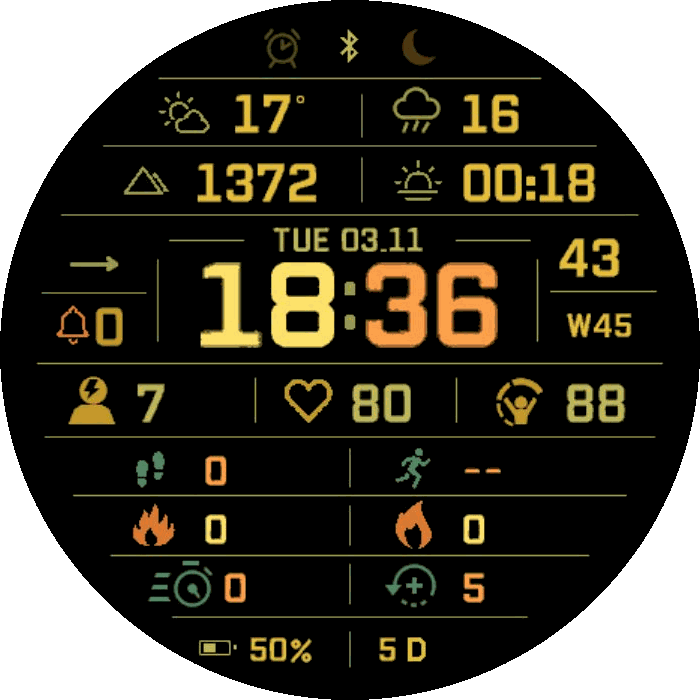
Ivory Meridian brings an instrument panel look to your Garmin watch: bold digital time, precise dividers and a detailed dashboard on a black AMOLED background.
Make it yours
- 19 independently configurable data field positions.
- Choose from a wide range of Garmin health, activity, weather and device metrics.
- Set separate HEX colors for field values and icons, plus hours, minutes, date and dividers.
- Warm yellow, orange, olive and green default palette.
- Custom date format with documented, case sensitive tokens in settings.
Your day at a glance
Display heart rate, stress, Body Battery, steps, intensity minutes, recovery time, calories, monthly running distance, weather, precipitation chance, altitude, pressure trend, notifications and more. Metric availability depends on the data supplied by your watch.
Practical details
- Large digital time with 12 hour or 24 hour display following your watch settings.
- Custom date templates, seconds and a calendar week prefix that follows the watch language.
- Next sunrise or sunset, with an indicator identifying the event.
- Battery percentage and estimated whole days remaining.
- Always On Display with matching large time, date, colors and frame lines, shifting slightly each minute.
- Data field selection directly on the watch and Connect IQ settings for colors and calibration.
Compatibility
See the Compatible Devices section for the current list of supported watches.
Data notes
Active calories are an estimate based on total calories and elapsed resting energy; they may differ from Garmin's native active calorie value. Monthly running distance is calculated from activity history available on the watch and may omit records that are not supplied by the device. Weather and sun event fields require available Garmin weather, location or native complication data. Unavailable values are shown as dashes. Battery days are Garmin's estimate, not a battery life guarantee.
Trial and payment
Try Ivory Meridian free for 7 days. Continued use after the trial requires a one-time purchase through KiezelPay.
When the watch displays a purchase code, open https://kzl.io/code on your phone, enter the code shown on the watch and complete checkout. Keep the watch connected to your phone with internet access so it can receive the payment confirmation and unlock automatically.
Restore a purchase
If you reinstall the watch face and it asks for payment again, do not purchase it again. Open https://kzl.io/unlock and enter the new code displayed on the watch together with the email address used for your original purchase.